

We are progressively rolling out a small change to help you keep your net worth up to date: managing your account syncs now happens in a dedicated Sync section.
What’s changed
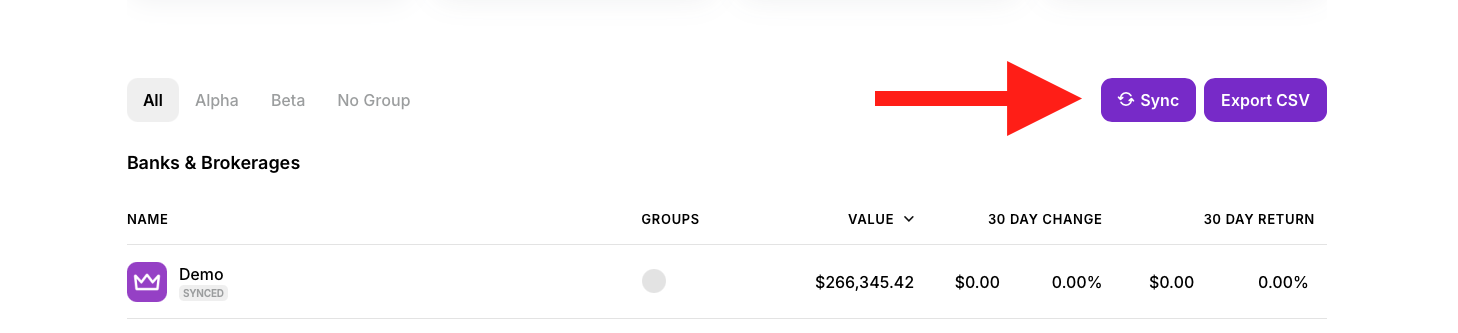
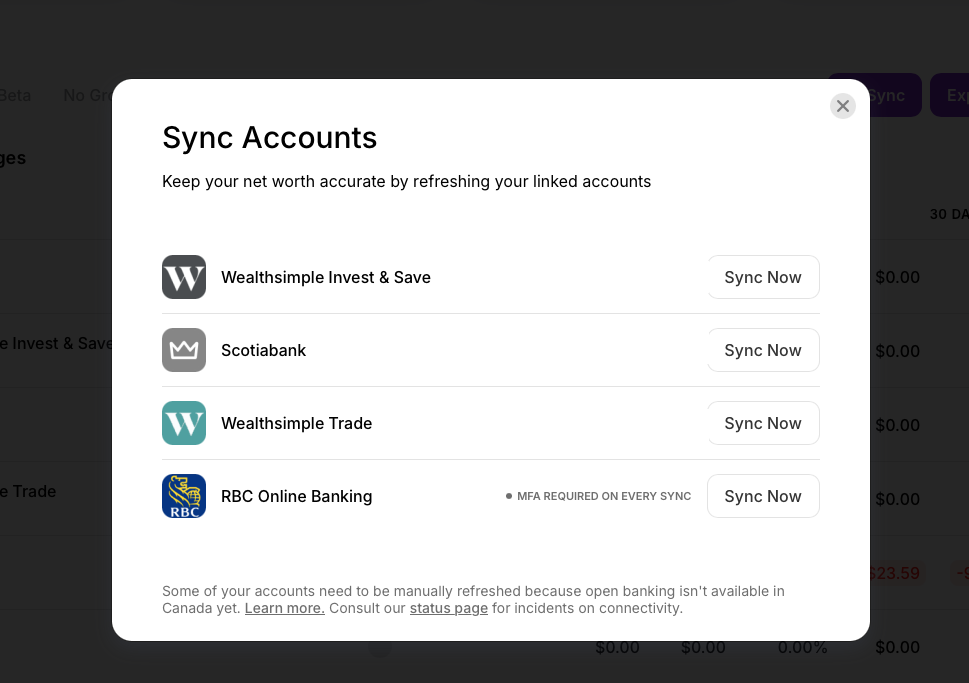
You’ll now find the Sync button at the top of your Banks & Brokerages list, right next to Export CSV. Clicking it opens a Sync Accounts window that shows only the institutions that need your attention, each with its own “Sync Now” button. If everything is up to date, there’s nothing to do.
How to use it
- Go to your dashboard and scroll down to Banks & Brokerages.
- Click the purple Sync button.
- Choose the institution you want to refresh and click “Sync Now”.
 |
 |
Want to manually sync an account that’s already up to date?
No problem. Scroll down to the institution list at the bottom of the main dashboard page, click on the institution, and click Sync.
A quick note on manual refreshes
Some institutions need to be refreshed manually because open banking isn’t available in Canada yet. Accounts that require multi-factor authentication (MFA) on every sync are clearly labeled, so you’ll know to have your code ready before you start.
If you run into any connectivity issues, you can check our status page for incidents affecting your institutions.
We hope this makes keeping your accounts current quicker and simpler. If you have any questions or feedback, just reply to this email and we’ll be happy to help.
Thank you for using Wealthica 🙌
